
Welcome to Forex Project#
Forex Project lets you run automated trading bots and trade manually on MetaTrader 5 accounts, directly from your browser.
Every new account comes with a simulated demo account: virtual money with real market prices, so you can learn how the bots behave without risking anything. When you are ready, you can connect your own broker account.
What you can do#
- Demo account
- Practise with virtual US dollars and real market prices. Add virtual funds with Deposit or start over with Reset.
- DCA bot
- Opens a first order and adds orders as the price moves against it, then closes the whole cycle at a profit on the bounce.
- GRID bot
- Places buy and sell orders across a price range and collects profit each time the price swings between levels.
- Risk presets
- Ready-made settings — Conservative, Optimal and Aggressive — that fill in the bot settings for you.
- Manual trading
- Buy and sell yourself on the Trade page, with market orders, pending orders, Take Profit and Stop Loss.
- Broker accounts
- Connect MetaTrader 5 accounts on the Brokers page and run bots on them.
- Analytics
- Performance statistics for each account: profit, win rate, drawdown and more.
- Invite & earn
- Share your referral link and earn a share of the subscriptions of traders you invite.
Your first steps#
Follow these steps to go from a new account to your first running bot.
- Sign up and verify your email. Open the link in the verification email. You can use the demo account straight away, but you need a verified email to connect a trading account or to subscribe.
- Open Accounts. This is your dashboard. The Demo account card shows your virtual balance.
- Create a bot. Click Launch DCA or Launch GRID on the Accounts page, or go to My bots and click Create new bot. Choose the Demo account, an asset and the Optimal preset, then click Continue.
- Start the bot. You are taken to My bots. Find your new bot in the DEMO tab and click Start.
- Watch it work. Click the bot card to see its orders on the chart and in the Open, Pending and Closed tabs. Click Details for its statistics.
- When you are ready, connect your broker account on the Brokers page and choose a plan under Upgrade.

Important things to know#
- Bots run on our servers. They keep working when you close the browser or switch off your computer.
- Markets have trading hours. When a market is closed, a bot cannot place orders and shows Market closed — orders resume automatically when trading opens.
- Live accounts use real money. Accounts are tagged DEMO or LIVE, and switching to a live account asks you to confirm.
- Your plan sets the limits for how many trading accounts you can connect and how many bots can run on broker accounts. Bots on the simulated demo account do not count towards the bot limit.
- Smart Protection can pause a bot around high-impact news, when prices tend to jump sharply.
Accounts (dashboard)#
The Accounts page gives you an overview of every account and quick access to the bots.
What you see
- Current plan
- Your subscription plan, shown at the top right.
- Get started checklist
- Your progress through the first steps: Create your account, Start your first bot, Connect a trading account and Choose your plan. Click an unfinished step to go there. The checklist disappears once every step is done.
- Demo account card
- Your simulated account. The Live prices badge means it trades on real market prices.
- Broker account cards
- One card per connected broker account, with its name, login, server and a DEMO or LIVE tag. Connected means live data is coming in; Connecting… means it is still loading.
- Add new account
- Opens Choose a broker to connect another trading account.
- Trading bots
- Launch GRID and Launch DCA open the bot creator. View all opens My bots.
- Trading accounts
- Your connected accounts and how many your plan allows, for example 2 of 5 trading accounts used.
Account card figures
- Large amount
- Equity — your balance plus the profit or loss of open positions.
- Free margin
- Money still available to open new positions.
- Unrealized P/L
- Profit or loss of positions that are still open.
- Balance
- Money in the account, without open positions.
- Margin
- Money set aside to keep your open positions open.
- Margin level
- Equity divided by margin, as a percentage. Higher is safer. It shows — when nothing is open.
- Leverage
- The account leverage, for example 1:500.
Buttons
- Deposit
- Demo account only. Adds virtual funds: enter an Amount (USD) or pick +$1K, +$10K, +$50K or +$100K, then click Deposit now.
- Reset (circular arrow)
- Demo account only. Resets it to $10,000. You are asked to confirm, because all orders are closed.
- Trade
- Broker accounts. Opens the Trade page with that account selected.
- Settings (gear)
- Broker accounts. Opens the Brokers page.
Finding your way around#
On a computer, the menu is on the left. On a phone, the main pages are in the bar at the bottom of the screen.
| Menu | What it is for |
|---|---|
| Accounts | Dashboard: all accounts, balances and quick links. |
| My bots | Your bots, their chart and their orders. |
| Brokers | Connect and manage broker accounts. |
| Trade | Manual trading: buy, sell and pending orders. |
| Analytics | Performance statistics per account. |
| Settings | Profile, password, subscription, billing, email notifications (which events we email you about) and more. |
| Invite | Your referral link and earnings. |
| Upgrade | Plans — opens Settings ▸ Subscription. |
| Help | This Help Center. |
| Log out | Signs you out. |
On a phone, the bottom bar shows Accounts, Bots, Trade, Stats (Analytics) and More, which opens Settings.

How the pages work together
- Brokers → everywhere
- An account you connect on Brokers appears on Accounts, in the Account list when you create a bot, in the account picker on Trade and as a tab on Analytics.
- Create bot → My bots
- A bot on a broker account appears in the REAL tab of My bots; a bot on the simulated demo account appears in the DEMO tab.
- Account picker on Trade
- Manual orders and new bots use the account selected here.
Demo, broker demo and live accounts#
| Account | Money | Where its bots appear | Tag |
|---|---|---|---|
| Demo account (simulated) | Virtual funds on Forex Project, real market prices | My bots ▸ DEMO | — |
| Broker demo account (paid plans) | Virtual funds at your broker | My bots ▸ REAL | DEMO |
| Live account | Real money at your broker | My bots ▸ REAL | LIVE |
DCA and GRID bots explained#
DCA bot — for trends with reversals
- How it works
- The bot opens a first order. If the price moves against it, it adds extra orders at set distances, each usually larger than the last. This improves the average price, so a smaller bounce is enough to close the whole cycle in profit at the Take profit target.
- Extra orders wait at the broker
- Extra orders are placed in advance as limit orders, so you can see them in the Pending tab. They fill at the planned price even while the market moves quickly.
- Cycles
- When a cycle closes, the bot starts a new one. One cycle can contain several orders.
GRID bot — for sideways markets
- How it works
- The bot divides the range between Low price and High price into levels. The middle of the range is the Reversal price: above it the bot only sells, below it only buys. Each order closes with a profit one level further on, and a new order then waits at its level again.
- Markets
- GRID bots currently trade XAUUSD (gold) only.
- Dynamic Grid
- When the price moves a full level outside the range, the whole grid follows it level by level — same width, same spacing — and the Reversal price moves with it.
Create a bot#
- Open the bot creator: My bots ▸ Create new bot, or Launch DCA / Launch GRID on the Accounts page.
- Choose DCA bot or GRID bot at the top of the panel.
- Pick the Account the bot will trade on. Each option shows its balance and, for broker accounts, a DEMO or LIVE label.
- Pick the Asset, for example XAUUSDm — Gold vs US Dollar.
- Choose the Direction: Long (buy) or Short (sell).
- Set the Investment (lots) with − and +. The panel shows the margin it needs next to your balance.
- Choose a risk preset: Conservative, Optimal or Aggressive. You can still change any setting afterwards.
- Open the sections below the preset to review the settings, and set a Total Stop Loss under Risk management.
- Give the bot a name in Bot name and click Continue.
- You see Bot created — press Start on its card to run it and are taken to My bots. Click Start on the new bot.
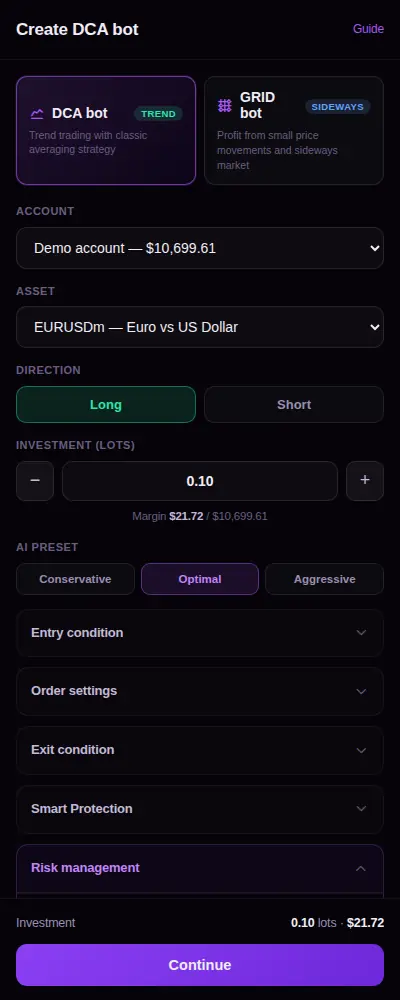
Entry condition
- Instantly
- The first order opens as soon as you click Start.
- Wait for pullback
- Waits until the price pulls back by the Pullback (%) you set.
- Wait until price falls to… / rises to…
- Waits until the price reaches the Trigger price you set.
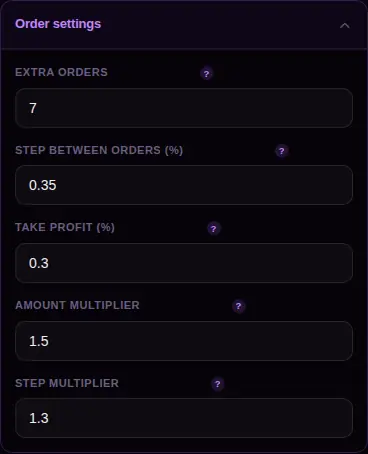
Order settings (DCA)
- Extra orders
- The maximum number of extra orders in one cycle.
- Step between orders (%)
- How far the price must move against the bot before the first extra order.
- Take profit (%)
- The profit target, measured from the average price of the cycle.
- Amount multiplier
- Each extra order is this many times larger than the previous one.
- Step multiplier
- Each next step is this many times wider than the previous one.
Grid settings (GRID)
- Trading amount (lots)
- The size of the whole grid: order amount per level × number of levels. The margin it needs is shown under it.
- Risk preset
- Sets the range and the levels for gold: Conservative ±4% with 26 levels, Optimal ±2.38% with 36 levels, Aggressive ±1.67% with 50 levels.
- Dynamic Grid
- The grid follows the price when it leaves the range.
- High price / Low price
- The top and bottom of the range — as a price, in pips, or in % from the current price. The line under each field shows its distance from the price.
- Grid levels
- How many levels fit in the range — as a number of levels, or as the distance between levels in pips or %.
- Order amount per level
- The lot size of each grid order, with the margin one level needs.
Exit condition
- Trailing Take Profit
- Lets profit grow instead of closing exactly at the target. Once the target is reached, the bot follows the price and closes when it falls back by the Trailing distance (%).
- Max cycle duration (hours)
- Closes a cycle that has been open longer than this.
Smart Protection
- Pause during high-impact news (DCA)
- Holds the bot around important economic news, when prices tend to jump sharply. Waiting orders are cancelled for that time and placed again afterwards. Positions that are already open are not closed.
- High- and medium-impact news (GRID)
- From the set minutes before an event until the set minutes after it, waiting orders are cancelled and positions in profit are closed; positions in loss keep their take profit. Defaults: high impact 10 min before / 40 min after, medium impact 5 / 20.
- No-Trade Window (GRID)
- Pauses the grid from 30 minutes before the daily market close until 30 minutes after it reopens (gold closes at 17:00 New York time). Open positions are left alone.
Risk management
- Total take profit ($) — 0 = off
- When the bot’s total profit (closed and open) reaches this amount, it closes its positions, cancels its waiting orders and stops.
- Total stop loss ($) — 0 = off
- When the bot’s total loss reaches this amount, it closes its positions, cancels its waiting orders and stops.
- Max price / Min price (0 = off)
- If the price reaches this level, the bot closes its positions and stops.
- GRID: switches
- For a GRID bot each limit has an on/off switch. Turned on, Total Take Profit and Total Stop Loss start at 30% of the margin, and Upper / Lower stop price at 30% above / below the price.

Manage your bots (My bots)#
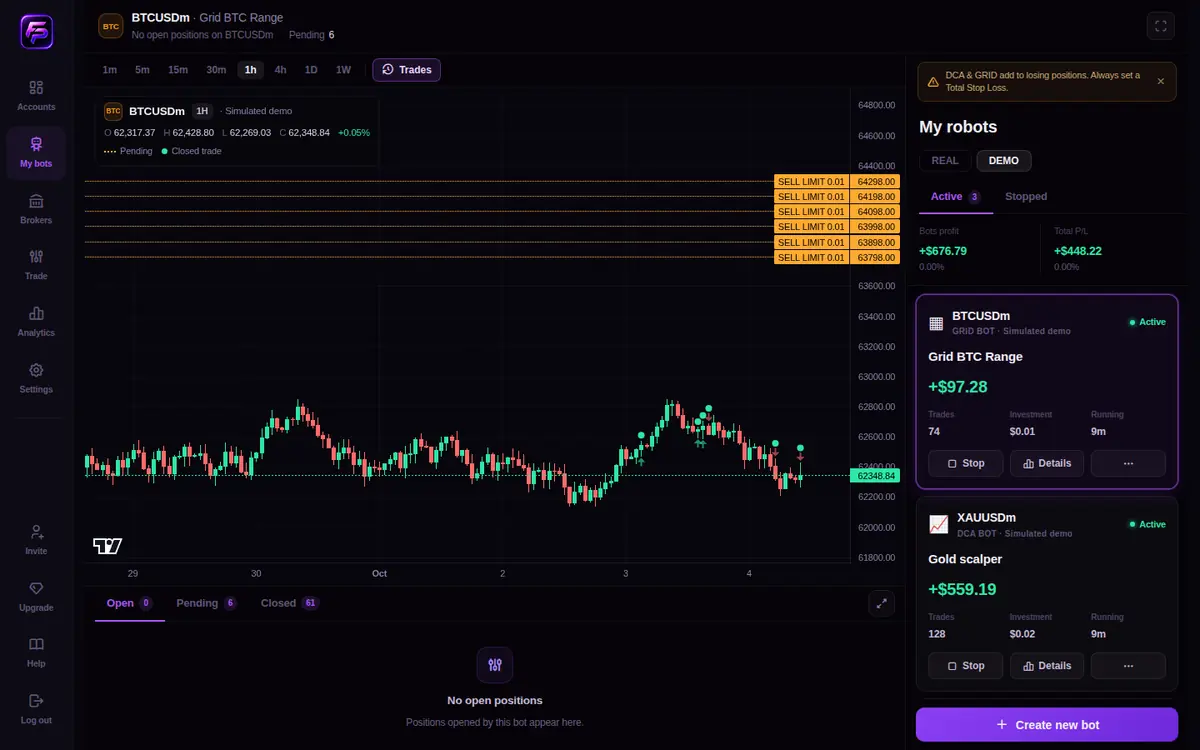
Top of the page
- Summary bar
- The market on the chart, the bot, and its open positions: Open (count and lots), Avg, TP, Floating and Pending.
- REAL / DEMO
- REAL: bots on connected broker accounts. DEMO: bots on the simulated demo account.
- Active / Stopped
- Shows running or stopped bots.
- Bots profit
- Profit from closed cycles only.
- Total P/L
- Closed cycles plus the open positions.
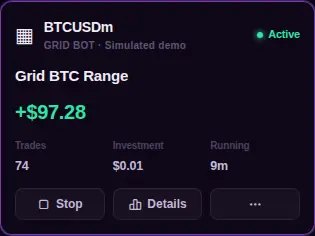
Bot card
- Header
- Asset, bot type and account (with a DEMO or LIVE tag), and the status Active or Stopped.
- Amount
- The bot’s total profit or loss.
- Trades · Investment · Running
- Closed trades, the investment size and how long it has been running.
- Orange message
- Why the bot is waiting, for example Market closed… or Waiting for entry condition… — see Troubleshooting.
- Stop / Start
- Stops or starts the bot. Stopping cancels its waiting orders; open positions stay open.
- Details
- Opens the bot’s statistics and settings.
- ⋯
- Rename or Delete the bot. Deleting stops the bot and cancels its pending orders; open positions stay open at your broker until you close them in the Open tab. The bot’s trade history stays available in Analytics.

Bot details
- Overview
- Total P/L (closed + open), Bot profit (closed cycles), a performance chart for 1d, 7d, 30d or All, and stats such as Floating P/L, Used margin, Open positions, Trades, Win rate and Trading time.
- Bot details
- All settings the bot runs with, such as amounts, steps, take profit, Trailing TP, Smart Protection and the risk limits.
Reading the chart#
The chart on My bots and Trade shows the market together with your orders.

- Legend (top left)
- Asset, timeframe and account, and the Open, High, Low, Close and change of the candle under your cursor.
- Timeframes
- 1m, 5m, 15m, 30m, 1h, 4h, 1D, 1W — the length of each candle.
- Entry (solid line)
- An open position, labelled with direction, size and profit, for example BUY 0.10 −$4.91. Positions at almost the same price share one label, for example BUY 0.20 (2).
- TP / SL (dashed)
- Take profit (green) and stop loss (red).
- Pending (dotted, orange)
- Orders waiting to be filled, for example BUY LIMIT 0.34.
- Markers
- Arrows mark entries; dots mark closed trades. Point at a candle to see its trades.
- Trades button
- Shows or hides the markers of past trades.
Open, Pending and Closed orders#
- Open
- Positions that are open now: price, current price, TP / SL, how long they have been open and profit. ✕ closes a position after you confirm Close this position?
- Pending
- Orders waiting at the broker: trigger price, distance from the current price and take profit. ✕ cancels one after you confirm Cancel this pending order?
- Closed
- Finished trades with the close price, time, duration and result. The line above the table shows the number of trades, win rate and realized P/L.
Manual trading (Trade)#

Parts of the page
- Account picker (top left)
- The account you trade on, with its balance. Click it to switch. Manual orders and new bots use the account selected here.
- Asset list
- Choose a market. Use All, Popular or Search to find it.
- Order panel
- Pending, TP and SL options, the volume in lots, the margin needed, and the Sell and Buy buttons with their prices.
- Order tabs
- Open, Pending and Closed, with Equity, Free margin, Margin level and Leverage below.

Place a market order
- Check the account in the account picker.
- Choose the asset.
- Set the volume with − and + (steps of 0.01 lots).
- Optional: click TP and/or SL and enter the Take Profit and Stop Loss prices.
- Click Sell or Buy. The order is sent immediately.
Place a pending order
- Click Pending. The Sell and Buy buttons are replaced by Place Pending Order.
- Choose the order type (see below).
- Enter the Trigger price. It starts at the current price so it is easy to adjust.
- Optional: add TP and SL.
- Click Place Pending Order.
| Order type | Opens when the price… |
|---|---|
| Buy Limit | falls to the trigger price (buy cheaper) |
| Sell Limit | rises to the trigger price (sell higher) |
| Buy Stop | rises to the trigger price (buy on a breakout) |
| Sell Stop | falls to the trigger price (sell on a breakdown) |
Managing positions
- Change TP / SL
- Click the pencil (Modify TP/SL) on an open position, enter Take Profit and Stop Loss, then Save.
- Close a position
- Click ✕ and confirm Close this position?
- Cancel a pending order
- Click ✕ in the Pending tab and confirm Cancel this pending order?
Connect a broker account (Brokers)#
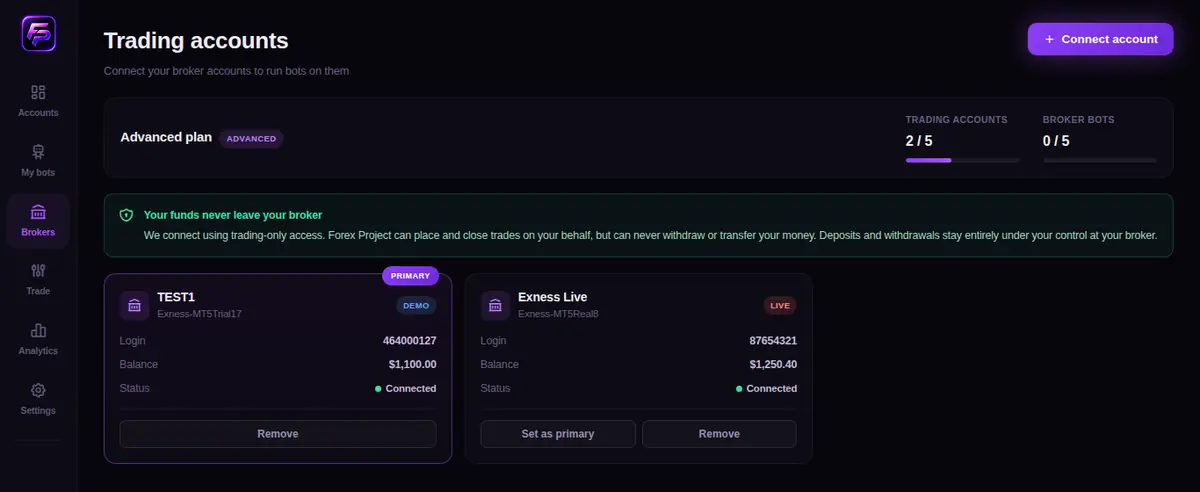
On this page
- Plan usage
- Trading accounts and Broker bots used out of your plan’s limit. Bots on the simulated demo account are not counted.
- Account cards
- Name, server, a DEMO or LIVE tag, Login, Balance and Status. One account carries the PRIMARY badge.
- Set as primary
- Makes this account your primary account.
- Remove
- Disconnects the account from Forex Project. Your account at the broker is not affected.
- Connect account
- Starts connecting a new account. When your plan’s limit is reached, the button reads Account limit reached.
Connect an account
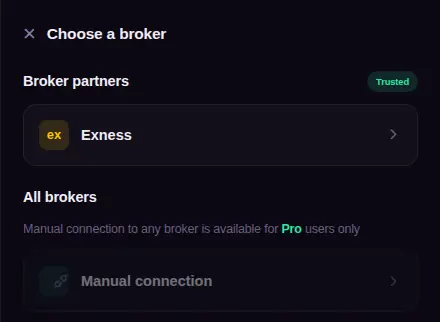
- Click Connect account. The Choose a broker window opens.
- Choose a broker under Broker partners (Exness), or Manual connection under All brokers.
- Fill in your MetaTrader details (see the fields below) and click Save account.
- The status shows Connecting… while the account is set up. Use Refresh status to check again. When it shows Connected, you can create bots on it.
Connection fields
- Account name (optional)
- A name to recognise the account, for example “Exness Live”.
- Broker / Platform / Server
- Your broker, MetaTrader platform and the exact server name shown in your MetaTrader app.
- Login
- Your MetaTrader account number.
- Account type
- Demo or live. On the Free plan only Real can be chosen.
- Password
- Your MetaTrader trading password — not the investor (read-only) password.
Analytics#
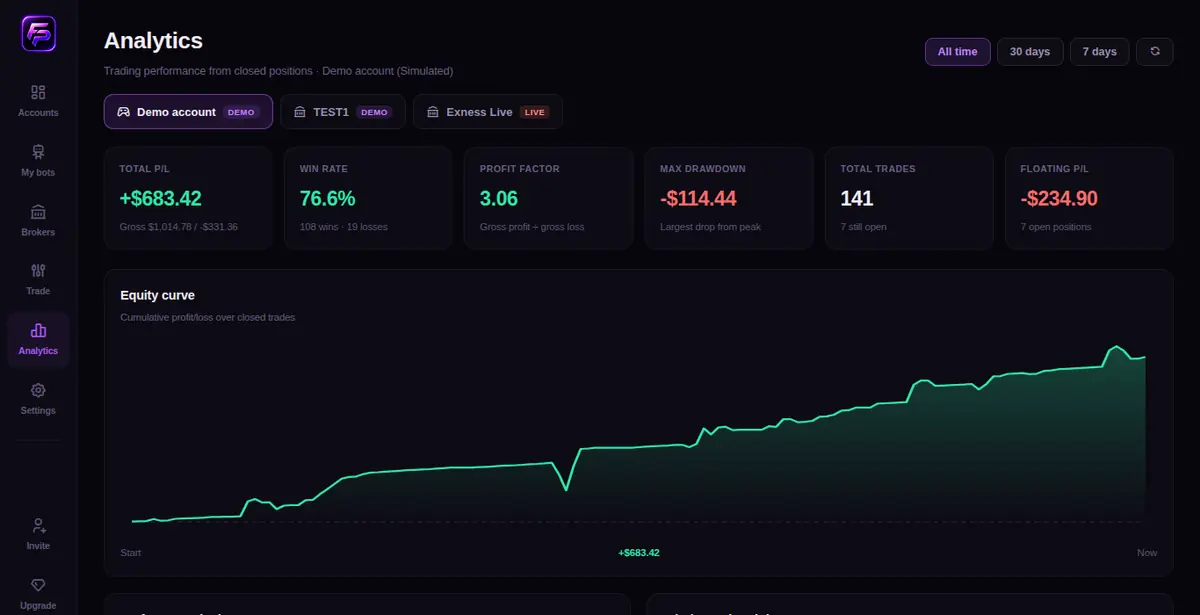
Statistics are shown for one account at a time, so results of virtual and real money are never mixed. Pick the account with the tabs under the title, and the period with All time, 30 days or 7 days.
Bots
- All bots
- Every bot and manual trade on the account, combined. This is the default.
- One bot
- Click a bot to see only its results. Each chip shows the bot type and its profit or loss.
- Several bots
- Click more bots to combine them; the row shows Combined. Click All bots to start over.
- Manual trades
- Trades you placed yourself on the Trade page.
- Deleted
- Deleted bots stay in the list with this label, so their results are never lost.
Figures
- Total P/L
- Result of closed trades (gross profit and gross loss below it).
- Win rate
- Share of closed trades that made a profit.
- Profit factor
- Gross profit ÷ gross loss. Above 1 means the profits outweigh the losses.
- Max drawdown
- The largest drop from a peak.
- Total trades
- Closed trades, and how many are still open.
- Floating P/L
- Profit or loss of the open positions.
- Equity curve — cumulative profit and loss over closed trades.
- Performance by bot — trades, win rate and P/L for each bot.
- Win / Loss breakdown — average win, average loss and more.
- Open positions and Recent closed trades.
Invite & earn#

- Open Invite and click Copy next to Your referral link, or share your Code.
- Traders who sign up through your link appear under Your referrals.
- You receive a share of every subscription they pay. New earnings are Pending and clear after 30 days, then become Available.
- When Available reaches the minimum of $25.00, click Request payout.
Your share grows with your tier: Starter (from your first referral), Growth (10+ referrals) and Elite (50+ referrals). The page shows the exact percentages of each tier.
Profile#

Settings has the tabs Personal, Brokers, Subscription, Billing, Invite, Help and Other.
Personal ▸ Account
- Display name
- The name shown in the app. Change it and click Save changes.
- Email address / Username
- Shown with a lock: they cannot be changed.
- Log out
- Signs you out on this device.
Password & email verification#
Change your password
- Open Settings ▸ Personal.
- Under Password, enter your Current password.
- Enter the New password (at least 8 characters) and repeat it in Confirm new password.
- Click Change password.
Plans, subscription & billing#
Click Upgrade in the menu, or open Settings ▸ Subscription. Choose Monthly or Yearly (shown with its discount), then pick a plan. Your current plan is marked Current plan.
Each plan sets how many trading accounts you can connect, how many bots can run on broker accounts, which bot types you can use, whether live (real-money) accounts can be used and whether manual broker connection is available. The Subscription page always shows the current details.
- Manage billing
- Shown when you have a paid subscription. Use it to change or cancel. You keep full access until the end of the period you already paid for.
- Billing ▸ Invoices
- Your invoices.
- Billing ▸ Payment method
- Add or change the card with Add card.
Delete your account#
Open Settings ▸ Other. Under Danger zone, click Delete account and confirm.
Troubleshooting#
The orange message on a bot card or on the chart usually tells you what is going on.
| You see | Why | What to do |
|---|---|---|
| A new bot does nothing | New bots start Stopped. | Click Start on its card. |
| Market closed — orders resume automatically when trading opens. | The market is outside its trading hours (for example at the weekend). | Nothing — the bot continues by itself when the market opens. |
| Waiting for entry condition (…) | You chose an entry condition other than Instantly. | Wait, or edit the condition when creating the bot. |
| Paused by Smart Protection: … | High-impact news is near. | Nothing — the bot resumes after the news window. |
| Waiting for the broker connection before placing orders… | The broker account is reconnecting. | Wait a minute. If it persists, check the account on Brokers. |
| … not enough free margin on the account. | Not enough free margin for the next order. | Add funds, reduce the investment, or close positions. |
| Broker account stays Connecting… | Wrong password or server, or the broker is slow. | Use your trading (not investor) password and the exact server name. Click Refresh status; if needed, Remove and connect again. |
| Please verify your email… | Your email is not verified yet. | Click Resend email and check your spam folder. |
| This trading account is not connected yet | You chose an account that is still connecting. | Wait until it shows Connected on Brokers. |
| A bot limit message when creating a bot | Your plan’s limit for bots on broker accounts is reached. | Upgrade, or create the bot on the simulated demo account. |
| Price history is temporarily unavailable — retrying shortly. | The chart could not load past prices. | Nothing — the chart retries by itself. Trading is not affected. |
| Chart unavailable — the chart library could not be loaded. | A browser extension or network blocked the chart. | Allow the site in your ad blocker and reload the page. |
| Bots profit and Total P/L differ | Bots profit counts closed cycles only; Total P/L adds open positions. | This is expected. |